CygNet DDS Import/Export Utility
The CygNet DDS Import/Export Utility (DdsLoad.exe) provides a method for offline review and editing of device facility header records stored in the Device Definition Service (DDS). The device header record contains the Device ID, Facility ID, and Facility Ordinal. The source file is a CSV file and can be reviewed and edited using any text editor.
The CygNet DDS Import/Export Utility is located in the CygNet\Utilities directory (DdsLoad.exe) on the host server. To start the utility, use Windows Explorer to browse to the directory and double-click the program icon.
This utility can be used to add facilities to remote devices and to change the facility ordinals. It cannot be used to add remote devices or delete records. Use the Device Copy Utility to add remote devices in bulk.
|
CygNet DDS Import/Export Utility |
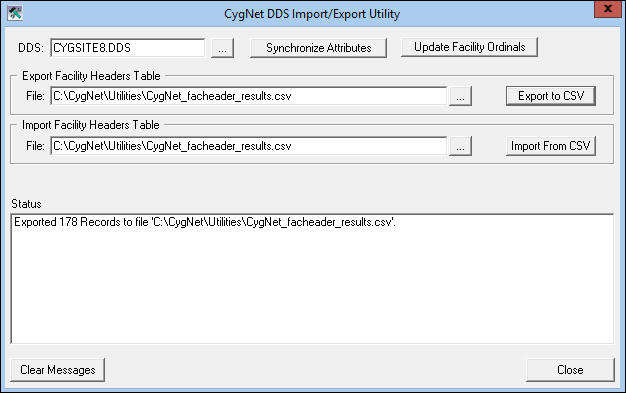
CygNet DDS Import/Export Utility Properties
The following table lists and describes the various properties of the CygNet DDS Import/Export Utility dialog box.
| Property | Description |
|---|---|
|
DDS |
Displays the name of the DDS for which the action will occur. |
|
Synchronize Attributes |
Forces synchronization of the (DDS) with the Facility Service (FAC). |
|
Update Facility Ordinals |
Opens a dialog box to Update Facility Ordinals. |
| Export Facility Headers Table | |
|
File |
Click the browse button and choose a location and file name for the export. |
|
Export to CSV |
Click to export as a CSV to the selected location. |
| Import Facility Headers Table | |
|
File |
Click the browse button and choose the file for the import. |
|
Import From CSV |
Click to import the selected file. |
|
Status |
Displays the results of the export or import. |
|
Clear Message |
Clicking this button clears the messages in the Status field. |
|
Close |
Click to close the utility. |
To Export DDS Facility Header Records
Exporting saves the attributes to a CSV file. If the specified CSV file already exists, it will be replaced when the export is run.
- Select the DDS by clicking the Browse button next to the DDS field.
- Type a file name (including the .csv extension) to which to export the data in the File field in the Export Facility Headers Table section. If you do not specify a path, the file will be created in the same directory from which the utility is run (typically CygNet\Utilities directory). You can click the Browse button to select a particular directory. Browsing will insert a default file name (dds.fachdrs.csv). You can overwrite this name.
- Click the Export to CSV button.
- When the export is complete, the Status field displays the number of exported records.
To Import DDS Facility Header Records
The import command uploads attributes to the DDS from a CSV file. The utility checks each line in the file for validity before uploading.
- Select the DDS by clicking the Browse button next to the DDS field.
- Type the name of the file that contains the facility attributes in the File field in the Import Facility Headers Table section. You can also click the Browse button to select the file.
- Click the Import from CSV button.
When the import is complete, the Status field displays the number of affected records. It shows the number of records added, updated, skipped, and an error count. If a record in the .csv file and in the DDS is identical it will be "skipped" meaning no updates were made.
CSV File Output
The first row of the DDSLoad.csv file is the header row. Each device record constitutes one successive row under the header.
| Column | Description |
|---|---|
|
DEVID |
The ID of the device facility. |
|
FACID |
The ID of the logical facility. This is the same as the DEVID for devices. |
|
ORDINAL |
The ordinal of the facility. If the facility is a device, the ordinal is -2. Do not change device ordinals. |


